Showing posts with label Computer Tips. Show all posts

Windows XP Setup on Laptop...

0 comments
The laptop computer market, which most of us are created by Vista design. The result is an error message when the computer is setup to Setup did not find any hard disk ... so that they can not kampiutaragulote setup.
- If you can not give up?
- It must be possible. It is not difficult. Just follow these steps.
The necessary equipment
Windows XP will create a new CD. No problem. Some things will be input only. Let her know that, but slowly.

    Windows XP CD
    1 blank CD
     Enalaita software http://www.nliteos.com/
     Net and Microsoft .0 http://download.cnet.com/Microsoft-NET-Framework-Redistributable-Package-x86/3000-10250_4-10726028.html?tag=mncol&cdlPid=10726027
     ISO booster http://www.mediafire.com/?ft0i4cs12i1a9w4
    Sata (SATA) driver

Sata driver for the company's website from any laptop SATA or Google search by typing in a search to find sata drivers. However, most of the hard disk is sata kampiupatarei Toshiba company. The Toshiba hard drive with Windows XP drivers for the take is to create a CD.
When Windows XP was introduced to the market is not the laptop. Which sata driver is not Windows XP CD. Sata hard drive using a laptop, but now the laptop can not install Windows XP. The sata drivers because Setup did not find any hard disk ... message me. This means that Windows can not read the hard drive. Now you do not have much to be done. Sata driver to be connected to a XP CD.
Procedure
v enalaita, ISO booster, Microsoft Dot Net and set up the .0.
v Select the Windows XP CD and enter the computer.
v Lunch bustarera screen from ISO bootable disc - click.
v Microsoft Corporation.img then click on Extract Microsoft Corporation.img.
v Now save the image.
We do when Windows XP Setup, the setup of the Press any key to boot from CD ..... Messages. This is the work of Microsoft Corporation.img. If you copy a folder in the Windows XP CD and it is right that Microsoft Corporation.img it will not work. Stock Image of a CD with just the right software can be enalaita before. However, if you can save it to a Google search.
v A copy of a folder in XP and copy the file to the folder in your Microsoft Corporation.img.
v The computer will create a CD for the sata drivers on a computer disk copy of the Keep rimubhala.
Extract the zip files on the disk, v rimubhala.
v The folder to copy the other files.
How to work with Windows XP sata driver

    Enalaita software on it.
    Next, click on Browse to show the XP files.
    Next, select the Drives and Bootable ISO.
    Click Next again. Click Insert to add the following removable  SATA Driver disk.
    Then click the Next Do you want to start the process? Will. Yes, and only began to be Process.
    Next, the process ends when Bootable ISO window appears.
    From here you can write directly to CD or a bootable image to the right to later. Mode to Create Image to create a bootable image, select the Label button and then click Make ISO.

Right before the CD must not forget to add the Microsoft Corporation.img.
Reade more >>

Setup Windows XP/ Vista/ Win7/ 2008 from USB stick or Flash drive

0 comments
We already blogged the method to Setup Windows XP/ Vista/ Win7/ 2008 from USB stick or Flash drive, besides, few readers want the same with Windows XP too. We tried to find out the solution but didn’t get simple and straight forward way to make this. Well now we have solution, to make bootable USB stick to install Windows XP.
Requires:
How To:
  1. First of all, plug your USB stick and Open (My) Computer. Right click on USB stick and choose Format… to prepare it.
  2. Download and extract WinSetupFromUSB. Now run the utility.
  3. Mark checkbox corresponding to Windows 2000/XP/2003 Setup and locate installation source or CD that contains I386 or AMD64 folders.
  4. Now click on Go button to start copying installation source to USB stick and finalizing all sort of things.
  5. Once its Done! you can restart your PC and boot from USB stick. You need to follow 3-Steps installation, viz:
    1. Text mode setup
    2. GUI mode setup
    3. Start Windows for first time

    Start with First part of Windows installation; When the first step (Text mode setup) completes and system reboots, boot with USB stick again and select Second part of 2000/XP/2003 Setup and complete GUI mode setup. Now instead of boot with HDD, boot with USB stick one more time and choose Second part setup again and keep USB stick plugged-in until you see Windows desktop.
Applies To:
  • Windows 2000
  • Windows XP
  • Windows Server 2003
- UPDATED 01/10/201
Reade more >>

What is the difference between “Save” and “Save as” when saving a file?

0 comments
In most programs you will see a file drop down menu that has both a save and save as option on it. Most new computer users do not clearly see the difference between Save and Save as. They look very similar, sound like they do the same thing, but are not alike at all. They both are relating to saving files onto your computer but can both have very different outcomes.

What happens when I press “Save”?

When you are saving a file for the first time and press save you will see options on choosing a file name, file location, and file type. Here is a screenshot of when I saved a document in Word 2007 for the first time. See my three options are available to change.
 SAVE or SAVE AS
When you save a file that already has a previous version saved, with the exact filename, pressing save will overwrite that file. You will not see the same options as you did when you first pressed save on a new file. In fact you will most likely see absolutely nothing. It will just silently overwrite the original file.
Most programs presume that if you open a file from your computer, edit it, and then press save, you simply want to update the original file.

When pressing “Save As”, what does it do?

Pressing save as will again give you the options to change the file location, file type, and most importantly, the file name. This will allow you to save your file under a new name and avoid overwriting the original file.

When should I use the “Save As” option?

The best example for using the save as option is when you simply want to make another copy of the original file. If you choose “save as” and then save the file to another location (folder) you will have made another exact copy of the file but stopred it somewhere else. If you want to store the exact copy of a file in the same location or folder as the original, then you must rename the new file. The original file might be SAVEAS.DOCX and the copy might be SAVEAS2.DOCX. Then you know its the same file, but the second version. 

Why do we need both options, “Save” and “Save As”?

The reason we need both the Save and Save As options is that Windows will not allow you to save two files with the exact file name in the same folder or location. So for example if you have a file named SAVEAS.doc already saved in the documents folder, any other files with the same filename will overwrite the original file. This is why we need the save as option, to save the edited file under a new name.You can however save the same filename in different folders. This is why we end up with multiple copies of the same file.

When don’t you need to use Save AS?

When you are saving a new file that you have never previously saved before you do not need to use the Save As option. If you just choose save, and there is no previous version, then you will see the option to choose the filename, location , and file type.

How to accidentally overwrite files when using Save and Save As option?

Don’t be too quick to save your files. When people rush they make mistakes. I will give you a few examples of how you can accidentally overwrite files when using the save and save as option.
  1. The first and most obvious mistake is that people simple press save, thinking they will see options on where to save the file and what to name it. You only get these options if this is the first time you have saved the file. If you press Save from then on, you are overwriting the previous version.
  2. You open a document from your computer, edit this document considerably, and decide to use the save as option. But Oh No, you forgot to change the file name. Even when a message came up saying that you were overwriting the existing file, you just didn’t think and pressed ok.

Questions to ask yourself when saving a file?

  1. Saving a file for the first time:
Where do you want to save this file on your computer? This is the location that the file will be saved to. What folder are you going to save the file in?What are you going to name the file? Each file needs a name in order to be saved.What file type are you going to save the file in? This is usually decided for you and depends on what program you are using. For example a Word 2007 file will be saved as a .docx file, a notepad file will be saved as a .txt file, and so on. Some programs require you to choose the file type, however most have a default file type to use.
  1. Saving an already previously saved file:
Will you be overwriting a previous copy of the file? If you have opened a file, edited it, and now want to update the original with this edited version then just press save. This is overwriting the original version of the file.Do you need to keep the original copy unchanged? If you have open a file, edited it, and now want to keep both the original and the new edited version, you need to press save as. When you do press save as you also need to rename the file so there are two different files saved.
Reade more >>

Computer Maintenance Tips and Tricks to Backup, Scan and Clean

0 comments
Computer maintenance is a part of everyone’s lives now, much like owning a car and getting it serviced, it just has to be done. Computers are the same, needing regular maintenance, as they get clogged up with truck loads of hidden files. I have published many articles about computer maintenance, however the most popular article is my computer maintenance checklist. This is the exact reason that the video below was made. I needed to show people what to do and what was involved in performing computer maintenance.
Most of the time the average computer user has no idea that they are actually messing up a computer just by using it. Do you surf the internet, read file attachments from your email, or simply write a Word document? Without even personally saving a file on your computer, there are hundreds of different files saved automatically each time you do anything on your computer. For example if you receive an email with a Word document attached to it and open it to read instead of saving it first, the document will be temporarily saved in the Windows Temp folder. Imagine after reading this Word document, you try to save it to your computer without looking where you are saving it. If you do not choose where to save this file it will be saved in a temporary folder. Eventually this temp folder becomes quite large in size without you even realizing.

In the video below I show you how I perform Computer maintenance on my computer.

Of course there are programs out there that can do all this for you, which I will mention in a later article.  Here are some steps I go through:
    computer maintenance checklist
  1. Move files I want to keep and store for later use.
  2. Delete files I do not need.
  3. Remove programs I do not need. (Ones I have installed)
  4. Delete old emails.
  5. Delete Temp files manually.
  6. Delete junk files from the rubbish bin… Email programs have a junk and deleted folder to clean out also.
  7. Perform disk Cleanup. (Getting what I missed)
  8. Defrag with JKdefrag.

What happens if you do not perform any computer maintenance?

Have you ever had a computer that just was so slow you wanted to smash it? Or maybe the computer is so full it will not do anything, not even open programs. Well this is what happens if you do not perform computer maintenance. You cannot just do this once either! You need to perform regular computer maintenance in order to keep your computer running smoothly. If you use your computer on a regular basis you will need to do computer maintenance task more often. When you become experienced you will be able to see the signs of your computer asking to be maintained.
Reade more >>

The gentle art of trying to understand computer repairs

0 comments
If you’ve ever been baffled by the conversation about a car service, as most people have, you’ll be pleased to hear that computer repairs are now almost as difficult. Computer and car owners have one thing in common- They own machines they don’t know a thing about. Most computer users get battered into a level of experience having to do basic things, but holding a semi-informed conversation is about the limit of knowledge.
Those who’ve had a sudden computer crash will remember that sick feeling of thinking they’ve lost all that work, and the sage advice to buy an external hard drive to use for backup storage next time.

The general conversation, however, is like a post-mortem:

Computer owner: It was making a beeping noise when I started it up.
Computer technician: Yeah, that means the hard drive’s about to crash.
Computer owner: Oh, well… now I know… thanks…
As sparkling conversation goes, this goes nowhere. A lot can be learned, after the event, but not like that. The computer owner is no wiser, and the fact that hard drives can crash for many different reasons never enters into the mix.
Even more unproductive, arguably, are the software/hardware computer issues. If a video card goes on the blink, be prepared for a very helpful, almost unintelligible monologue.
Computer owner: The screen froze, all scrambled. I tried restarting, and it was blank.
computer repairsComputer technician: The video card’s had it. You’ll need a new one, $100 for a good one that OK? You’ll need a high performance card to get the best out of this duo core. Of course you could go for a combination TV card, if you want to hook up to the TV? If you watch a lot of videos online or DVDs on this computer, I’d suggest… (Blur of words, followed by expectant silence)…that sound right for you?
Computer owner: Guess it’ll have to be, won’t it?
Several hundred dollars later, the computer owner is now the proud, if almost entirely uninformed, possessor of a brand new something or other. The good news is that the screen does work.
Computer owners aren’t about to become tech-literate overnight. Computer technicians spend years getting to this level of proficiency and unintelligibility when computer troubleshooting. Without the slightest intention to confuse the customer, they leave the customers hoping they understood at least some of what they’ve been told.

The short answer to computer ignorance

Like car ownership, computer ownership is a case of managing your needs. The best way to get a decent grip on your computer and get the best out of it is to do a course, and at least learn the fundamentals properly.
Like cars, computers suffer as much from their users as from any defects. Some people happily park their computers right next to a nice window where the sun can cook them very effectively. Others manage to put their expensive computers in areas where steam, cooking fumes or other useful additions to the hard drive can accumulate. Some people hook up to ancient power points and forget to use a power board, and the computers get fried in any case.
A computer repair job can be very like a car repair- A job that wouldn’t have need doing if the owner knew what they were doing. Take the hint, learn how to manage your machine, and you’ll have far fewer problems.
Reade more >>

10 Tips And Tricks For Computer Hardware Maintenance

0 comments
If you don’t have money in the budget this year to buy a new computer, then it’s important you learn how to keep your current computer in top shape using our 10 tips and tricks for computer hardware maintenance. We always seem to mention computer maintenance but never maintenance on the computer hardware. We even have an entire computer maintenance checklist but computer hardware maintenance is only mentioned briefly.

Computer Hardware Maintenance Tips

Computer Tips #1: Clear Vents

Hot computers die quickly. You probably know from elementary school science class that most materials expand when they get hot. There are various ways to stop a computer from overheating. Computers are built to exacting measurements—your computer processor has parts that are measured in nanometers and other parts of the computer just as precisely built, so when your computer gets too hot, and things expand too much, your computer is likely to die.
The part of your computer that usually dies first is your hard drive. Inside your hard drive are tiny ball bearings that rotate thousands of times a minute in tiny tracks. When they expand from heat, they rub against their tracks and quickly wear down. Once a disk drive ball bearing wears down, there’s no replacing it—your disk drive is toast. You should also watch for dust build up in your power supply.
computer hardware maintenance
The easiest way to keep your computer cool is to make sure its vents are clear. First, check to see if anything is obstructing the vents—too often I find computers that are pushed all the ways back against a wall so that their vents are blocked. Second, check the vents for dust and clean them if necessary. Computer vents are usually large, so you only need to check for dust every year or two (more often if you smoke near your computer).

Computer Hardware Maintenance Tips #2: Clean Inside

The same advice that goes for cleaning vents applies to the inside of your computer too. I know opening a computer case is a pain—but if you don’t clear out the dust that accumulates under the computer processor and optional graphics card processor fans, these two vital components will eventually over heat. Replacing either will cost about $200, while cleaning them every year will cost you only a little time plus a $3 can of compressed air.
To clean inside your computer, turn off the computer and unplug its power cord, then open its computer case and use the compressed air to blow away any dust. Make sure you cover your eyes, and try not to inhale until the dust settles. If you’re really serious, use swimming goggles and a face mask.

Computer Tips #3: Store In Static Guard Bags

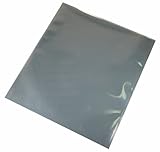
Cables Unlimited ACC-1472 10-Inch x 12-Inch Metalized Anti-Static Bags - 10 PackComputer electronics use almost imperceptibly small wires, many of them on printed circuit boards. Because they’re so small, these wires are very susceptible to electric shocks—like the static electric shock you sometimes feel when you touch a metal doorknob in winter.
Even a tiny electric shock can damage one of these wires and ruin the entire electronic device. Happily, you can easily protect against most static electric shocks by storing your electronics in a special bag. The bag has wires traveling through it, making it into what electrical scientists call a Faraday cage. (Many science museums have a great demonstration of a human-sized Faraday cage where the demonstrator stands inside a cage which deflects bolts of lighting right in front of the audience.)
All store bought electronics that go inside your computer come inside these bags. I usually save them for when I need them, but you can also buy static-proof bags for cheap on Amazon.

Computer Tips #4: Avoid Moisture

Everybody knows that water and electricity don’t mix, yet even I sometimes forget how sneaky water really is. When water gets in your computer, it can cause two wires to short out—to send their electricity across a path the designers didn’t intend—which will temporarily disable your computer. If the short lasts long enough, it can create enough heat to melt one or more of the tiny wires in your computer, breaking that component forever.
If it were possible, I’d suggest you only used your computer in a climate-controlled room with a no-beverages sign on the door, but here are some realistic ways you can avoid moisture damage:
    top 10 computer tips
  • Keep your computer away from windows that open. Although rain falling in through the window is one threat, I once ruined a laptop by leaving it by an open window on a foggy morning.
  • Be extra careful with drinks and laptops. With full-sized computers, you’re only likely to ruin the keyboard when your drink spills; with laptops, you’re likely to ruin the whole computer.
  • Unplug the power and (for laptops) remove the battery of any computer that might get wet. It’s ok for electronics to get wet if there’s no electricity traveling through them. (When I go camping, I always store my netbook and its battery in separate zip-lock bags.)
  • Don’t leave computers outdoors. I know this sounds obvious, but it’s too easy to go inside to fix a drink, get distracted, and forget about your laptop—until it starts raining.

Computer Hardware Maintenance Tips #5: Unplug During Storms

Did you know that before radio was invented, some people used to send wireless messages by creating giant sparks? If you create a giant spark, which scientists call an electromagnetic pulse, it makes conductive metal spark in other places up to several miles away.
The problem with electromagnetic pulses is that long wires—like the wires in your house—can catch a lot of energy, creating a really big spark, and the surge of electricity from that spark can easily fry your computer.
The good news is that it’s illegal, for just that reason, to create electromagnetic pulses in most places. The bad news is that nature has her own electromagnetic pulse generator—lightning. A lightning bolt doesn’t need to hit your house to create a power surge—it doesn’t even need to be close.
Unplugging your computer from the wall is the best way to help prevent a lighting strike from destroying your computer.

Computer Tips #6: Use A Surge Protector

Even if you always follow the above advice about unplugging your computer during a storm, you still need to worry about power surges frying your computer.
Power surges can happen for many reasons, including bad wiring, transformer explosions, squirrels or possums eating through power lines, and problems with other large electrical appliances in your house. You also have to worry about thunderstorms that happen when you aren’t home to unplug your computer.
To protect against unexpected power problems, buy a surge protector. Some of them even come with guarantees to replace hundreds of thousands of dollars of computer equipment if an electrical surge gets past the surge protector. This is an important part of computer hardware maintenance.

Computer Tips #7: Prepare For Failure

Some times the best computer hardware maintenance is preparing for failure. All of the expensive tools you use, from your car to your computer to your cell phone, will fail eventually, so you should start preparing to replace them—especially since they’ll probably fail at the least convenient time.
For computer hardware, the device most likely to fail is your disk drive. We’ve told you in other articles at Tips4PC how to make good backups, and I suggest you read one of those articles if you don’t have backups set up yet.
I used to keep a spare disk drive handy in case on of my disks failed, but with the rapidly dropping cost of hard disk drives, I think it’s better to accept the inconvenience of driving out to buy a new one every few years.
After your disk drive, the following devices are most likely to fail. You either want to have a spare handy or at least the money available to buy a replacement:
  • Printer (they tend to stop printing correctly, rather than break entirely. It usually isn’t worth fixing a cheap printer.)
  • Graphics card
  • Computer power supply (often starts making noises a few weeks before dying)
  • Power button (if you’re careful, you can hot-wire most computers to use your computer until you buy a new button)

Computer Tips #8: Turn Off Unused Devices

In theory, hardware with no moving parts should last forever, and it sure looks like most electronic devices don’t have any moving parts—but what you can’t see are the electrons moving down the wires at 60% or more the speed of light.
In some places, the electrons need to cross a small gap. In these places, the electrons will sometimes pick up a tiny bit of metal from one side of the gap and deposit it on the other side of the gap. As time goes on, there is less and less metal at the starting side of the gap, until there is too little metal for the electrons to use—at that point your device just stops working. (You may get flickering for a few weeks beforehand.)
Some electricity needs to travel through electronics for as long as they are turned on, and the longer they are turned on, the sooner they will fail. You can add years of use to a device’s life just by turning it off when you aren’t using it.

Computer Tips #9: Don’t Wait To Fix It

Computer hardware maintenance means taking small steps to prevent big problems later. Nowhere in computer maintenance is this more evident than when it comes to fixing small problems before they blossom into unfixable problems later.
For example, is your computer making a weird sound? A lot of the time when I get called in to fix a totally broken computer, I later discover the computer was making weird sounds for weeks before. If they had called me earlier, I could’ve pinpointed the problem by just listening to the computer, ordered the replacement part, and made the switch in about 5 minutes of downtime. But when I get called into to fix dead computers, it usually takes several days to identify the problem and replace the broken part.
Any inconstancy in your computer devices should be investigated. If your USB flash drive doesn’t always work, or your DVD burner sometimes burns bad disks, or your computer monitor flickers occasionally—these are all problems you should investigate with a quick search on Google.
If you can’t find an answer on Google, at least write down a comprehensive description of the problem, date it, and save it for any repair technician you later call. Knowing where and when the problem started can save hours of troubleshooting because to understand computer repairs can be difficult.

Computer Tips #10: Don’t Wear Down Connectors

Doesn’t it amaze you sometimes how so many things these days are covered in gold? Gold is $1,500 an ounce right now, but there’s gold on even the cheapest USB connectors—take a look at the connectors on your desk right now if you don’t believe me.
SanDisk Cruzer 16 GB Cruzer USB 2.0 Flash Drive SDCZ36-016G-A11How is that possible? Simple, the gold on those connectors is only 1,000th of a centimeter thick. It’s 100 times thinner than a human hair. (It’s also not pure gold.)
The problem with something that thin is that its easy to wear away. Every time you insert or remove a cord or device, a little bit of that gold plating gets worn off. Tight connections wear down faster than lose connections. All of this means that the more frequently you plug in your devices, the sooner they will stop working.
If possible, avoid unnecessary plugging in and unplugging of your devices.  It’s a computer hardware maintenance tip that will protect your parts’ tips.
Reade more >>
 

Copyright 2009-2012. All Rights Reserved by Talkfromnet.blogspot.com...About Author: MHSHOHEL